---
title: W/O Status & W/O Item Status
description: How to customize the status for both the work order itself and the work order items to maximize your shop workflow
---
[Skip to content](https://support.ebiscloud.com/wo-status#main-content)

- [Home](https://support.ebiscloud.com/)
- [Feature Release Notes](https://www.ebiscloud.com/feature_release_notes)
Open main navigation
Close main navigation
- [Home](https://support.ebiscloud.com/)
- [Feature Release Notes](https://www.ebiscloud.com/feature_release_notes)
How can we help you?
- There are no suggestions because the search field is empty.
1. [Help Center](https://support.ebiscloud.com/?hsLang=en)
2. [Work Order](https://support.ebiscloud.com/work-order?hsLang=en)
# W/O Status & W/O Item Status
## How to customize the status for both the work order itself and the work order items to maximize your shop workflow
### Introduction
EBIS allows for your work order status and work order item status to be customized. This document will detail how to configure both the W/O status and the W/O item status to best manage your existing workflows.
### Work Order Status
The work order status is meant to track, at a high level, where the work order is at. These are commonly Open, Out of Service, Waiting on Parts, Review, Billing, Completed, and Void.
While the list itself is customizable, there are a few system values that these are tied to. This is commonly referenced as **Status Type.** Ultimately, the work order is considered **Open** (editable), or **Completed** or **Void** (not editable).
When a work order is changed to a status type of **Completed**, EBIS will generate work order totals information and log this to various parts of EBIS. Therefore, if a work order is any completed status, it is locked. To make changes, you must re-open it.
Building the custom list is done from Config \> Lists (under Admin) \> W/O Status (under Work Order).
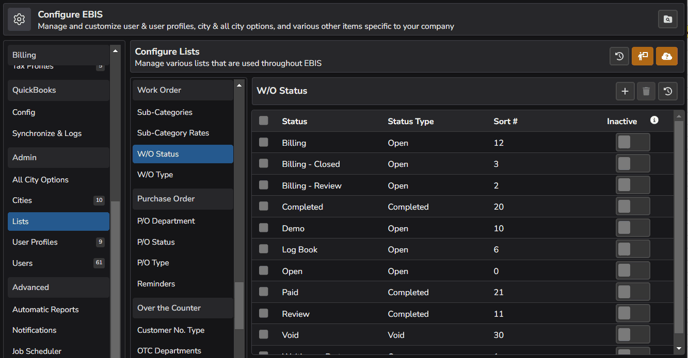
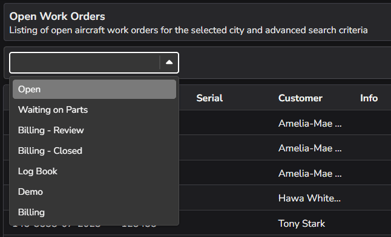
Note that you can set a custom sort # order: this is used to list the order of statuses in a non-alphanumeric order, when selecting the top down in a work order.
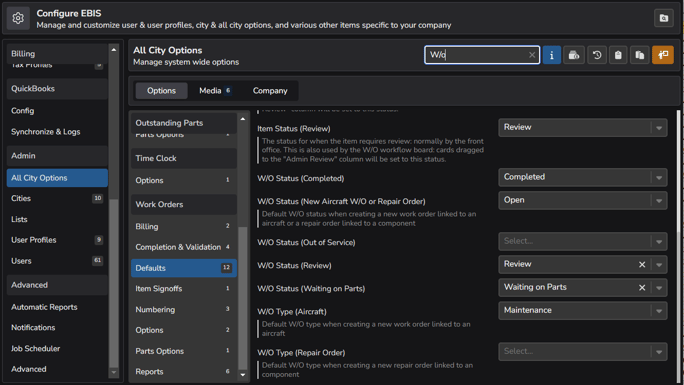
EBIS will perform certain actions based on when specific statuses are selected. These are ultimately set in Config \> All City Options (under Admin) \> Defaults (under Work Orders).
### Work Order Status: as "Open but Locked"
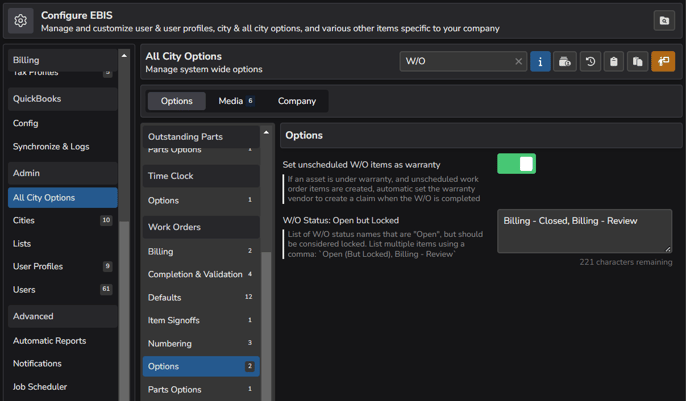
If specific work order statuses should be considered as open from a billing perspective, but locked for users, these can be set in Config \> All City Options (under Admin) \> Options (under Work Orders). If adding more than one, separate them with a comma, i.e.: "Billing - Closed, Billing - Review"
### Work Order Item Status
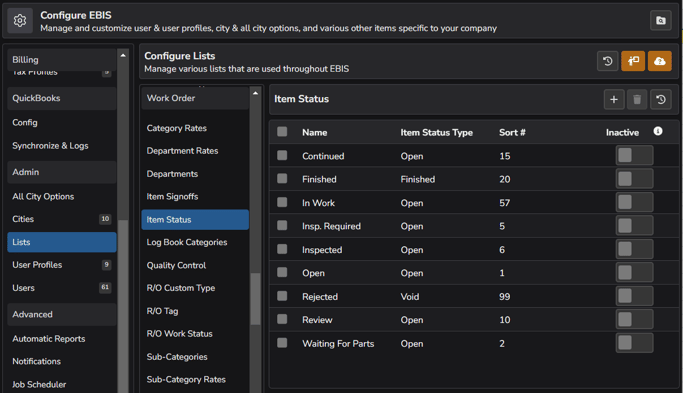
Work order items (also known as tasks or squawks) are also tracked by a status. As with W/O status, each W/O item status is linked to an **Item Status Type.** Ultimately, the work order item is considered **Open** (editable), Open but Locked (not editable), or **Finished** or **Void** (not editable).
This list can be customized in Config \> Lists (under Admin) \> Item Status (under Work Order).
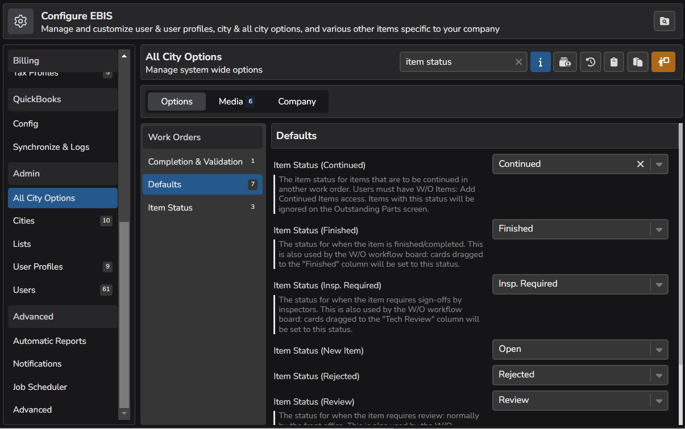
Like changing the W/O status, EBIS will perform certain actions based on when specific item statuses are selected. These are ultimately set in Config \> All City Options (under Admin) \> Defaults (under Work Orders).
### Automatic Item Status Changes
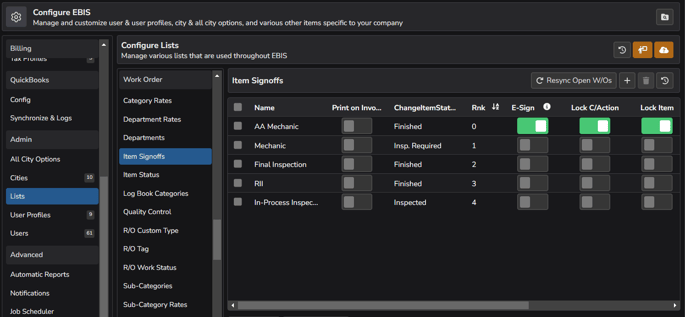
If using work order item signoffs (for aircraft or repair orders), please see Config \> Lists (under Admin) \> Item Signoffs (under Work Order) to optionally change the item status when a specific signoff is added.
### See Also
[Work Order Status: Security & Validation](https://support.ebiscloud.com/wo-status-validation?hsLang=en)
[Work Order Item Status: Security & Validation](https://support.ebiscloud.com/wo-item-status-validation?hsLang=en)
- [Onboarding](https://support.ebiscloud.com/onboarding?hsLang=en#main-content)
- [All New EBIS Customers](https://support.ebiscloud.com/onboarding?hsLang=en#all-new-ebis-customers)
- [Existing Customers - EBIS 3.2 to 5 Migration](https://support.ebiscloud.com/onboarding?hsLang=en#existing-customers-ebis-3-2-to-5-migration)
- [EBIS 5 Training](https://support.ebiscloud.com/onboarding?hsLang=en#ebis-5-training)
- [MRO Specific](https://support.ebiscloud.com/mro-specific?hsLang=en#main-content)
- [Work Orders](https://support.ebiscloud.com/mro-specific?hsLang=en#work-orders)
- [3.2 to 5](https://support.ebiscloud.com/mro-specific?hsLang=en#3-2-to-5)
- [Parts](https://support.ebiscloud.com/mro-specific?hsLang=en#parts)
- [Billing](https://support.ebiscloud.com/mro-specific?hsLang=en#billing)
- [Configuration](https://support.ebiscloud.com/mro-specific?hsLang=en#configuration)
- [Cores / Rotables](https://support.ebiscloud.com/mro-specific?hsLang=en#cores-rotables)
- [Aircraft](https://support.ebiscloud.com/mro-specific?hsLang=en#aircraft)
- [Tools](https://support.ebiscloud.com/mro-specific?hsLang=en#tools)
- [QuickBooks Online Integration (New)](https://support.ebiscloud.com/quickbooks-online-integration-new?hsLang=en)
- [Work Order](https://support.ebiscloud.com/work-order?hsLang=en)
- [Customer Approvals](https://support.ebiscloud.com/customer-approvals?hsLang=en#main-content)
- [Getting Started](https://support.ebiscloud.com/customer-approvals?hsLang=en#getting-started)
- [Using Customer Approvals](https://support.ebiscloud.com/customer-approvals?hsLang=en#using-customer-approvals)
- [Customer Experience](https://support.ebiscloud.com/customer-approvals?hsLang=en#customer-experience)
- [Troubleshooting & FAQs](https://support.ebiscloud.com/customer-approvals?hsLang=en#troubleshooting-faqs)
- [Aircraft](https://support.ebiscloud.com/aircraft?hsLang=en#main-content)
- [Getting Started with the Aircraft Module](https://support.ebiscloud.com/aircraft?hsLang=en#getting-started-with-the-aircraft-module)
- [Creating & Configuring an Aircraft or Fleet](https://support.ebiscloud.com/aircraft?hsLang=en#creating-configuring-an-aircraft-or-fleet)
- [Viewing & Updating Meter Readings (Aircraft Times)](https://support.ebiscloud.com/aircraft?hsLang=en#viewing-updating-meter-readings-aircraft-times)
- [Creating & Configuring Meter Profiles](https://support.ebiscloud.com/aircraft?hsLang=en#creating-configuring-meter-profiles)
- [Reviewing Historical Work Orders, Parts & OSRs on Aircraft](https://support.ebiscloud.com/aircraft?hsLang=en#reviewing-historical-work-orders-parts-osrs-on-aircraft)
- [Managing Deferred / Continued Maintenance Items](https://support.ebiscloud.com/aircraft?hsLang=en#managing-deferred-continued-maintenance-items)
- [Managing Recurring Maintenance Items with the Compliance Module](https://support.ebiscloud.com/aircraft?hsLang=en#managing-recurring-maintenance-items-with-the-compliance-module)
- [Setting Custom Pricing & Rates for Specific Aircraft](https://support.ebiscloud.com/aircraft?hsLang=en#setting-custom-pricing-rates-for-specific-aircraft)
- [Ordering Shop Supplies Using a “Shop Aircraft”](https://support.ebiscloud.com/aircraft?hsLang=en#ordering-shop-supplies-using-a-shop-aircraft)
- [Viewing & Managing Engine Compression Readings](https://support.ebiscloud.com/aircraft?hsLang=en#viewing-managing-engine-compression-readings)
- [Aircraft Module Fields, Definitions & Config Settings](https://support.ebiscloud.com/aircraft?hsLang=en#aircraft-module-fields-definitions-config-settings)
- [Advanced](https://support.ebiscloud.com/advanced?hsLang=en#main-content)
- [Errors](https://support.ebiscloud.com/advanced?hsLang=en#errors)
- [EBis 3.2 (Legacy)](https://support.ebiscloud.com/ebis-3-2-legacy?hsLang=en#main-content)
- [Work Orders](https://support.ebiscloud.com/ebis-3-2-legacy?hsLang=en#work-orders)
- [Pricing](https://support.ebiscloud.com/ebis-3-2-legacy?hsLang=en#pricing)
- [Troubleshooting](https://support.ebiscloud.com/ebis-3-2-legacy?hsLang=en#troubleshooting)
- [GSE EAM & CMMS](https://support.ebiscloud.com/gse-eam-cmms?hsLang=en)
- [Billing](https://support.ebiscloud.com/billing?hsLang=en#main-content)
- [City Config](https://support.ebiscloud.com/billing?hsLang=en#city-config)
- [EBIS Subscription Management](https://support.ebiscloud.com/billing?hsLang=en#ebis-subscription-management)
- [Best Practices](https://support.ebiscloud.com/best-practices?hsLang=en)
- [Parts](https://support.ebiscloud.com/parts?hsLang=en#main-content)
- [Cores](https://support.ebiscloud.com/parts?hsLang=en#cores)
- [Special Pricing](https://support.ebiscloud.com/parts?hsLang=en#special-pricing)
- [ADA Dashboards & Reporting](https://support.ebiscloud.com/ada-dashboards-reporting?hsLang=en#main-content)
- [General Reporting](https://support.ebiscloud.com/ada-dashboards-reporting?hsLang=en#general-reporting)
- [ADA Dashboards](https://support.ebiscloud.com/ada-dashboards-reporting?hsLang=en#ada-dashboards)
- [Power BI Connector](https://support.ebiscloud.com/ada-dashboards-reporting?hsLang=en#power-bi-connector)
- [General Configuration](https://support.ebiscloud.com/general-configuration?hsLang=en#main-content)
- [Addresses](https://support.ebiscloud.com/general-configuration?hsLang=en#addresses)
- [Quickbooks Imports with Transaction Pro](https://support.ebiscloud.com/quickbooks-imports-with-transaction-pro?hsLang=en)
- [New Releases](https://support.ebiscloud.com/new-releases?hsLang=en)
[](https://www.ebiscloud.com?hsLang=en)
[mailto:email@email.com](mailto:email@email.com)
Copyright © 2025, EBIS - Tronair