Jump to Section:
- Work Orders
- Transfer Tool to PO for Service/Calibration
- Individual Users
- Tool Rooms
Using Tools with Work Orders
Transfer Tool to a Work Order
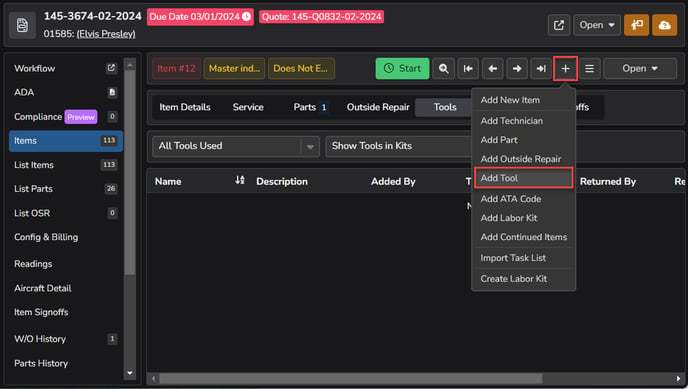
From the Work Order item that the tool will be used on, click the + icon in the top right and select Add Tool.
Search for and select the required tool. Review the tool details (make, model, media, location, etc.) in the Main Info section and click Continue to proceed to the Transfer details. 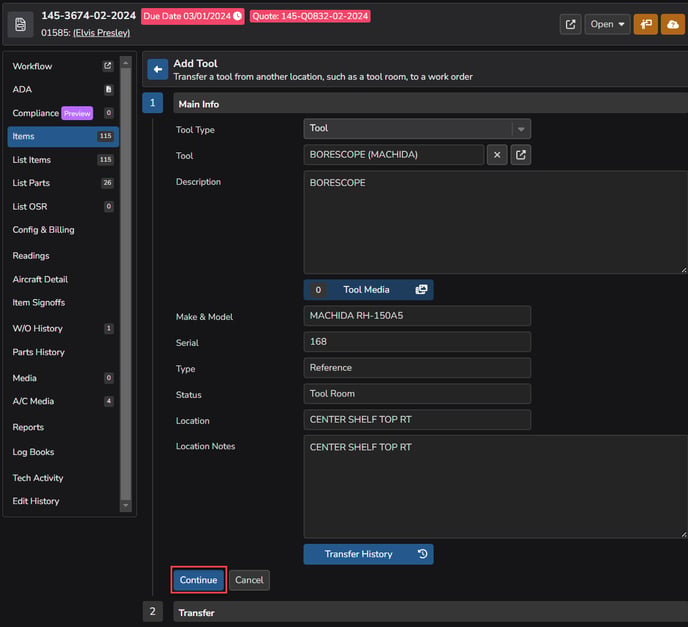
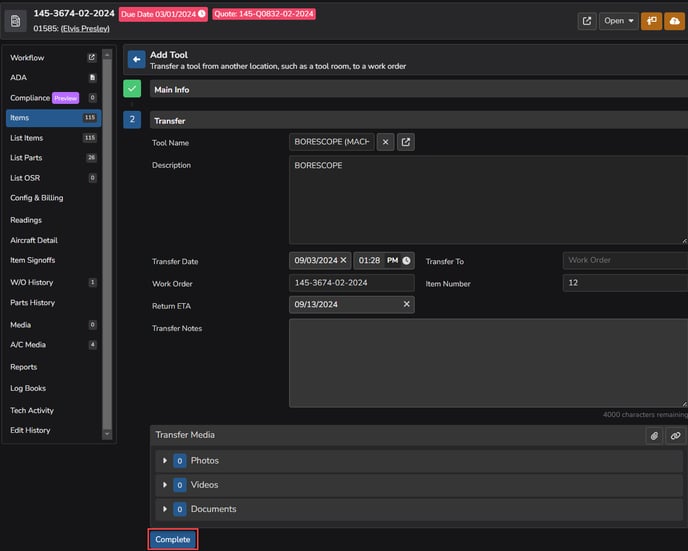
In the Transfer section, the Transfer Date and the Transfer To fields will automatically fill in based on the current time/date and the W/O that the tool transfer originated from. Entering a date in the Return ETA field will allow other users to see when the tool is expected be available again and Transfer Notes can be entered, if necessary. Click Complete.
The tool will then display on the Tools subtab of the item on the W/O. Filter dropdowns allow you to show or hide current tools and additional view options.
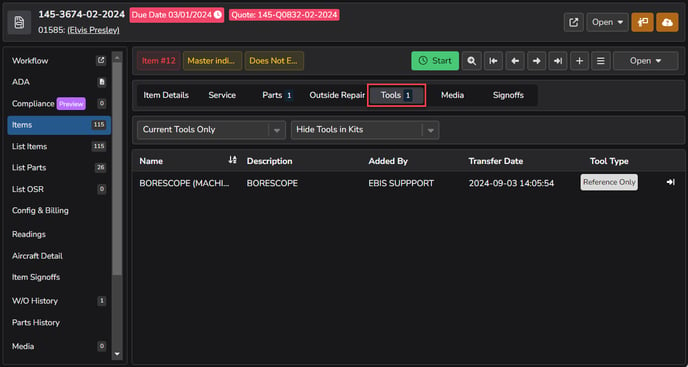
Return Tool from Work Order Item
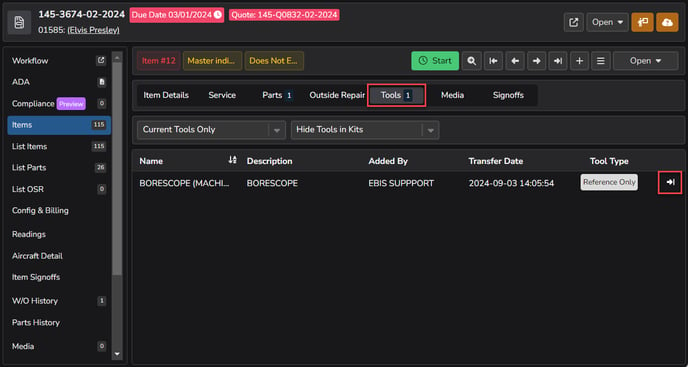
From the Tools sub-tab of the Work Order item that the tool is currently checked out on, click the Return Tool icon to the far left. Filter dropdowns allow you to show or hide current tools and additional view options.
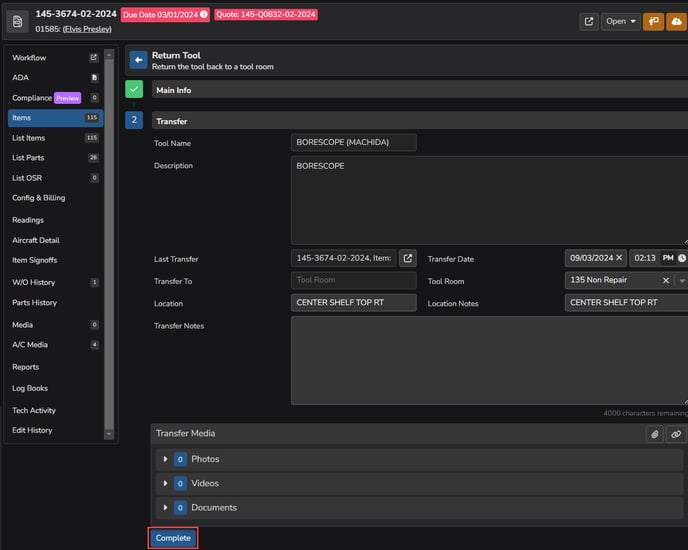
The return fields will automatically populate with the Work Order info and return to the default Tool Room for that tool. Update any of that information, if necessary, before clicking Complete to finish the return process.
Transfer Tool to a Purchase Order for Service
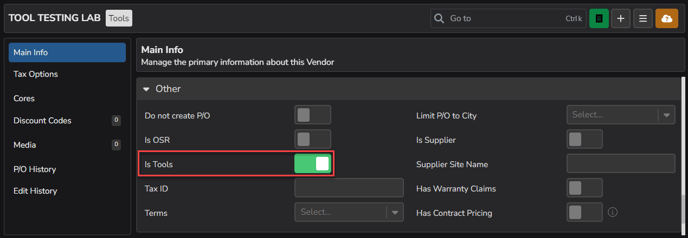
Note: Before a tool can be added to a P/O for service, the vendor must be flagged as a tool vendor. This can be done by enabling the Is Tools toggle directly in the Main Info of the Vendor record.
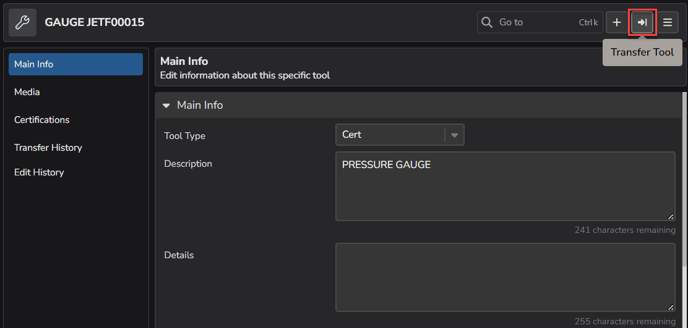
From the Tools Module  , open the record for the tool that needs to be sent out and click the Transfer Tool icon.
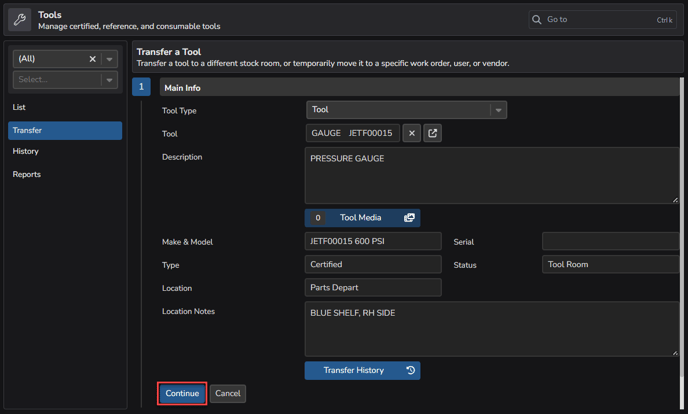
Review the Main Info and Transfer History, if needed, then click Continue on the Transfer a Tool screen.
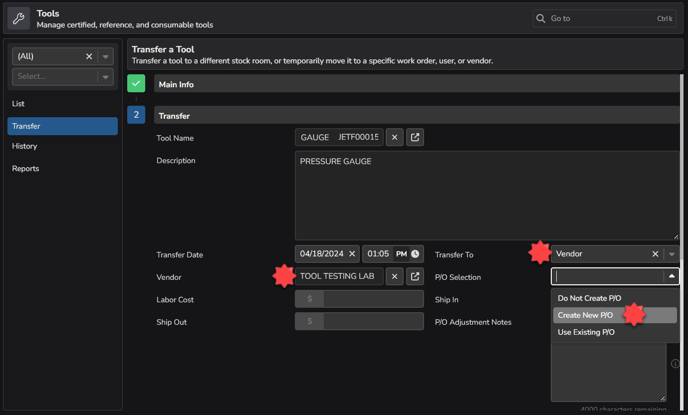
Select Vendor in the drop-down of the Transfer To field, choose the Vendor that the P/O will be servicing the tool from the Vendor field, and choose the appropriate option from the P/O Selection field.
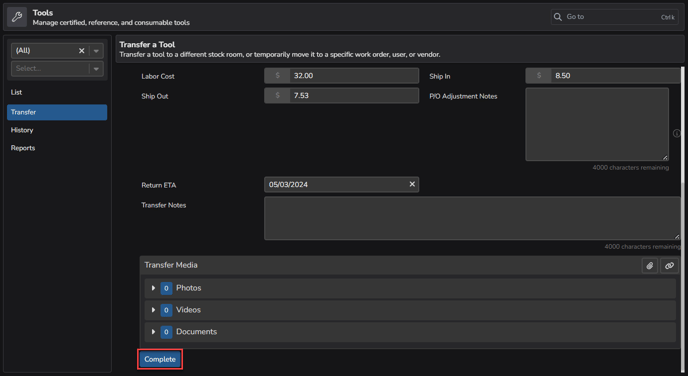
Add Media or enter data into additional fields (costs, ETA, notes), if necessary, then click Complete.
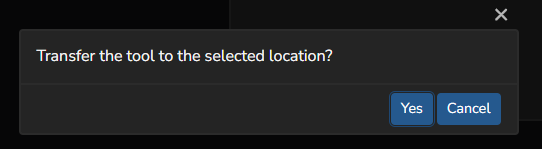
The pop-up will ask if you'd like to continue to transfer the tool to the selected location (vendor PO), click Yes to complete this transaction.
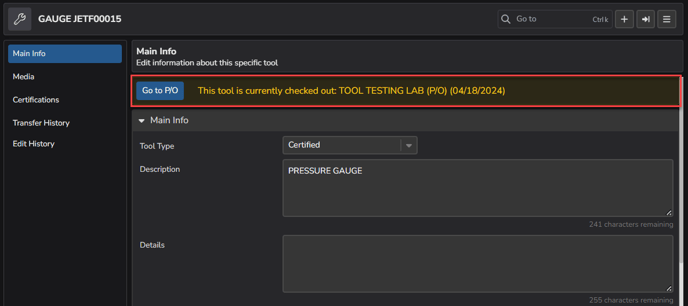
Click back into the tool record to see a new Yellow Information Banner with a Go to P/O option.
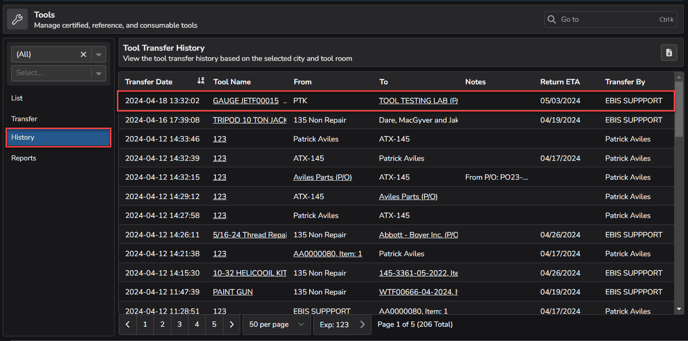
View All Tool Transfer History
Select History in the Tools Sidebar to view list of all transferred tools, each with a link to the Tool, W/O, and/or Vendor. Please be aware that this view will display any Notes and Return ETA entered from previous step.
Click back into the tool record to see a new Yellow Information Banner with a Go to P/O option.
Returning Tool to Service (Receiving from P/O)
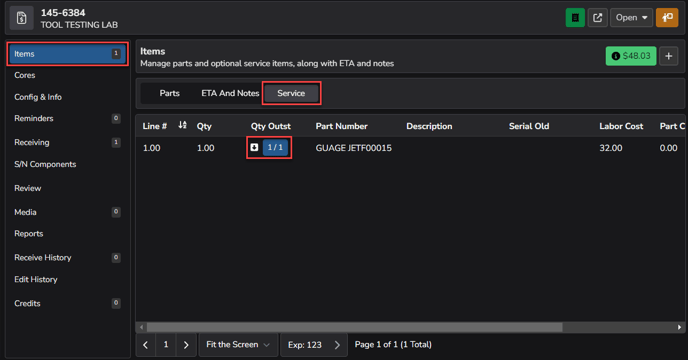
To return the tool to the stock room/service, go to the purchase order by pulling up the P/O directly or going into the Tool Record to access the P/O.
In the P/O, go directly to the Receiving Tab or click the blue icon under the Qty Outst column of the row that contains the appropriate tool (this will take you to the Receiving Tab).
Enter any info required by your business when receiving parts/tools in the Overview and Tool Specific Info sections of the Receiving Tab and click the Receive button at the top of the page to save.
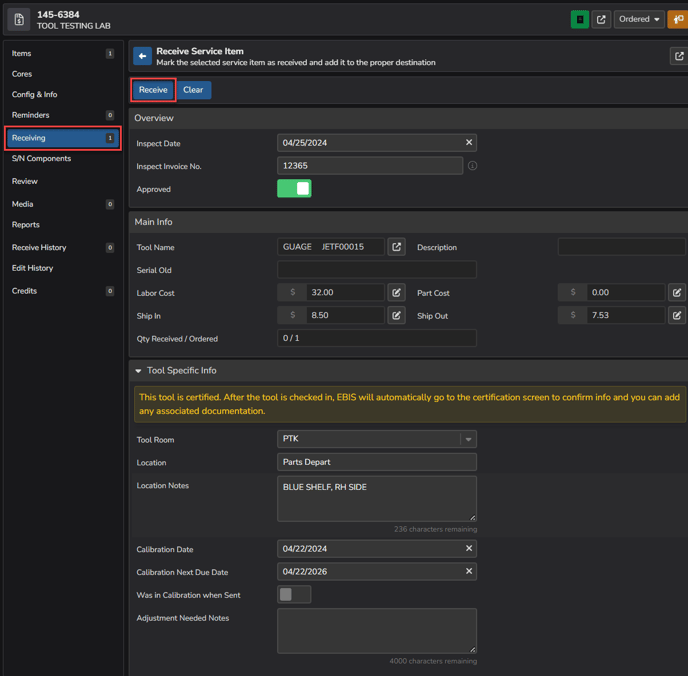
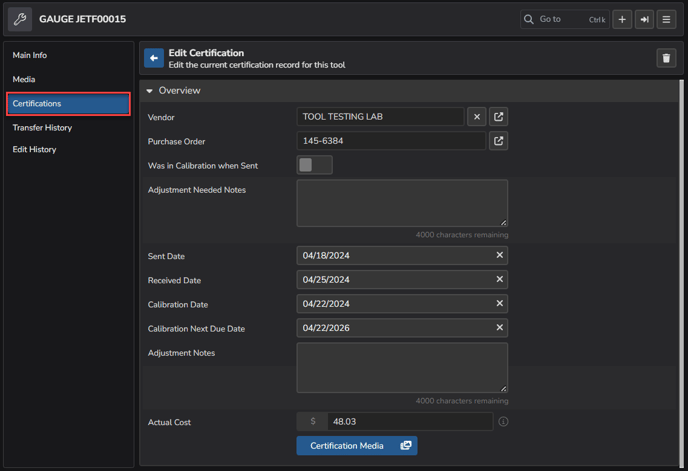
If the tool being received was a Certified Tool, the certification screen will display next and any associated documentation, notes, or media can be added.